

An Access database can run for years without trouble and then reach a limit. A new PC arrives and the database won’t open on it. More people start using it, and it slows to a crawl when several of them are in at once. Or staff begin working from home and can’t get at it.
At that point it’s easy to assume the database has had its day and needs replacing. In our experience it rarely does. Each of those limits has its own fix, and in most cases your staff keep the interface they already know.
Those fixes are what we mean by Access migration. CDE Systems has specialised in Access since 1999, and if you ring and describe what’s going wrong, we can normally say which fix you need in that one conversation, before anyone quotes you for a rebuild. We’ll do the moving, and what moves and when is up to you.
Which of the three is yours?
There are three different jobs here, and all of them get called migration. Most people only need one.
| What you’re seeing | The job | What your staff notice |
|---|---|---|
| A new PC or a new version of Office won’t run it | Access upgrade. Bring the database up to a current version | Nothing, if we’ve done it right |
| It crawls when several people are in, or corrupts after a network drop | Access to SQL Server. Move the data, keep the interface | The same forms, without the waiting |
| People need it from home, another site or the road | Access to Azure or the cloud. There are three ways to do it, set out below | Depends which way you go |
Access 97, 2003 and 2007 databases still run plenty of UK businesses. They keep going until something forces the issue, so an old version is nothing out of the ordinary.
An Access upgrade
This is the job when the database is fine and the world around it has changed. What it usually involves:
- Converting .mdb to .accdb, or deciding on purpose to stay where you are
- Moving from 32-bit to 64-bit Office, which is where most upgrades break. The culprits are Declare statements, DAO and ADO references, ActiveX controls and 32-bit ODBC drivers
- VBA that compiled in 2007 and won’t now (Access VBA development)
- References to libraries Microsoft has since dropped
- Testing every form, report and export before anyone relies on it
One warning while we’re here. Microsoft retired Access web apps and Access services in SharePoint years ago, so if somebody has offered you that as the upgrade path, it doesn’t exist.
Access to SQL Server
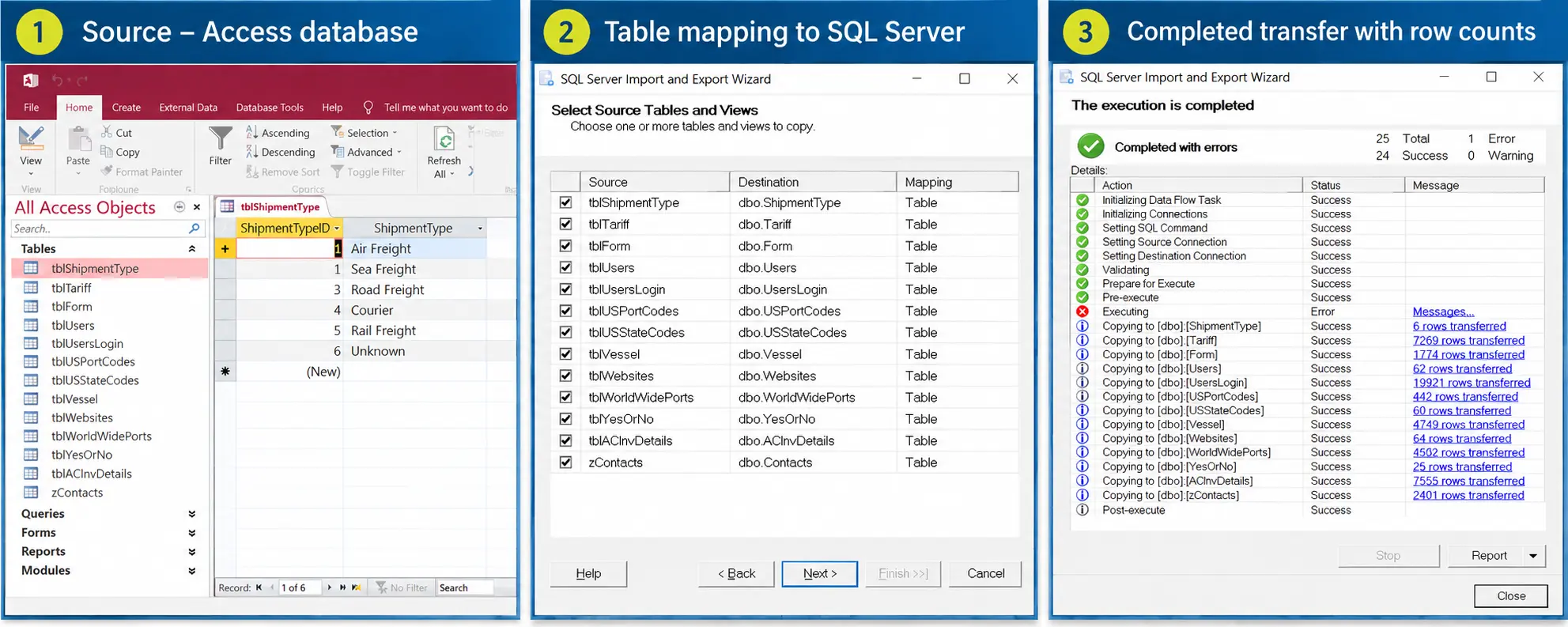
The technical name for this is upsizing. The data moves to SQL Server or Azure SQL, and the Access interface stays. On Monday your staff open the same forms they opened on Friday.
- The database gets split, with a copy of the interface on each PC
- Tables move with their keys, indexes and data types chosen deliberately, not left to whatever the wizard picks
- The heavy work moves to the server, using pass-through queries and stored procedures
- Queries that used to drag a whole table across the network to find one record get rewritten
- We reconcile record counts and totals before and after
Access in the cloud
People ask whether Access can go in the cloud. It can, in three different ways, and they suit different businesses.
| Route | What it is | Worth knowing |
|---|---|---|
| Data in Azure, Access on the desk | The data moves to Azure SQL and the interface stays on each PC | Fine on a solid connection at one site. Over the open internet it can be painfully slow unless the queries are reworked first, and that’s the part most quotes leave out |
| Access on a hosted desktop | The whole thing runs on Azure Virtual Desktop or RDS | It looks identical to users and works from anywhere. There’s an ongoing hosting cost to weigh up |
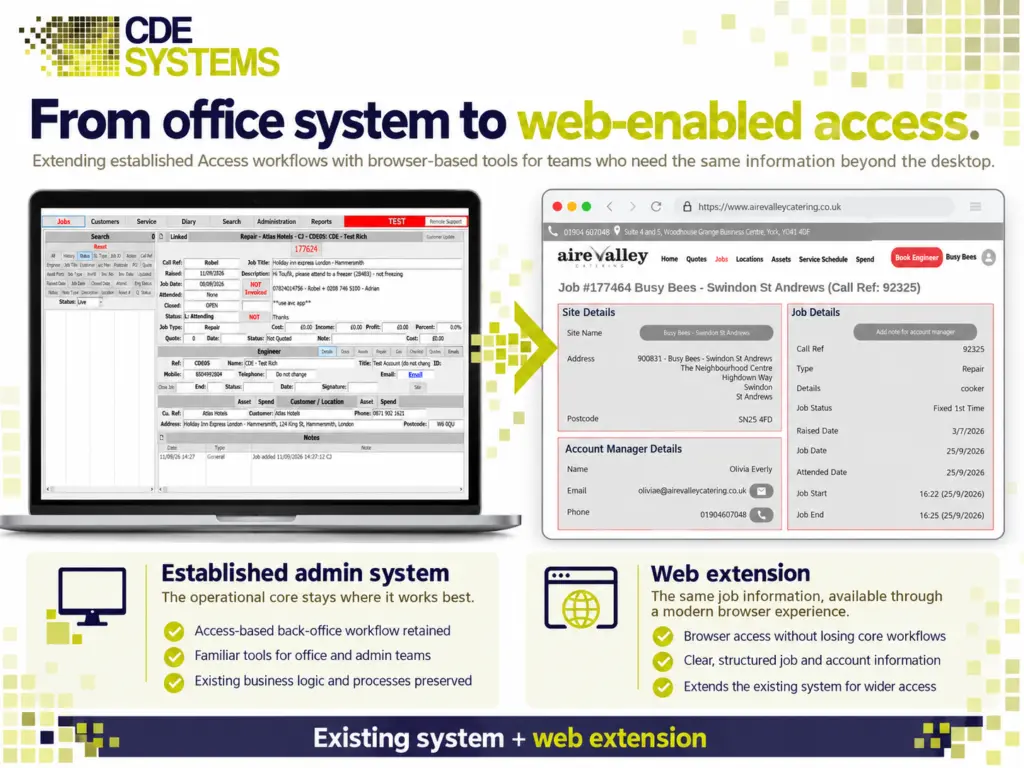
| Keep the database, add interfaces | Access stays in the office, and the people outside it get a browser or phone version of the parts they need | See web applications for existing systems |
Whichever you’re considering, we’ll give you a figure for what it costs to run as well as what it costs to build.
How we keep the move uneventful
Nobody can afford to lose a week of orders to a data move, so most of the work in a migration is making sure nothing interesting happens.
- We work on a copy. The live system isn’t touched until cutover.
- Where it matters, the old and new systems run side by side for a while and the figures get compared.
- Cutover happens out of hours or over a weekend, on a date you’ve agreed, with a time fixed in advance for calling it off if it isn’t going well.
- The rollback plan is written before anything starts, and the old data file is kept intact.
- Someone on your side who knows what the numbers should say signs off the totals.
- We’re still here the week after.
If you have an IT team, they stay in charge of the servers and the change process, and we do the Access and SQL Server work alongside them. We work with IT departments regularly.
Do we need to move at all?
Sometimes you don’t. A slow database can often be fixed where it is (Access performance tuning). And if you’d like to know for certain before spending anything bigger, an Access health check costs £495 (+VAT) and gives you the answer in writing.
Case studies
 Commercial Catering Service & Maintenance (field service)
Aire Valley Catering
Field service apps that work with no signal
Aire Valley Catering’s engineers work in commercial kitchens across the UK, often with no usable signal, and every job still has to be recorded. We built four production…
View case study
Commercial Catering Service & Maintenance (field service)
Aire Valley Catering
Field service apps that work with no signal
Aire Valley Catering’s engineers work in commercial kitchens across the UK, often with no usable signal, and every job still has to be recorded. We built four production…
View case study
 Transport and logistics
ACC Worldwide
A faster SQL Server system, noticed on day one
ACC Worldwide’s staff used one business system all day, every day, and it was slow. We worked on the SQL Server environment behind it. The speed-up was immediate,…
View case study
Transport and logistics
ACC Worldwide
A faster SQL Server system, noticed on day one
ACC Worldwide’s staff used one business system all day, every day, and it was slow. We worked on the SQL Server environment behind it. The speed-up was immediate,…
View case study
 Travel and leisure (adventure travel and expeditions)
Jagged Globe
Keeping bookings, customer records and the website in step
Jagged Globe runs on an internal database and a booking website that have to agree every day, and sometimes they didn’t. We traced and fixed the transfers between…
View case study
Travel and leisure (adventure travel and expeditions)
Jagged Globe
Keeping bookings, customer records and the website in step
Jagged Globe runs on an internal database and a booking website that have to agree every day, and sometimes they didn’t. We traced and fixed the transfers between…
View case study
Tell us what’s prompting the move
It might be a new PC, a slow month end, or staff working from home. Tell us that, along with the version of Access you’re on and roughly how many people use it. That’s normally enough for us to say which of the three jobs it is and what it would cost.
Call 0114 249 1036